
SwiftUI is Not React
I kept looking for useState. There is no useState.
When I started building Renala, I had years of React in my head: declarative UI, local state, a virtual DOM diffing into the DOM. I assumed SwiftUI would be the same machine in Swift syntax, Views instead of components, property wrappers instead of hooks, Apple’s reconciler instead of React’s.
I was right about the surface and wrong about the architecture.
What mattered was not syntax. It was four practical questions: where changing information lives, how it becomes pixels, how those pixels regain meaning for VoiceOver, and what context survives navigation. MVVM answered part of that. It did not answer all of it.
The React mental model
The React mental model is familiar: a component function reads props and local state, returns UI, then runs again when state changes. The new output is diffed against the old output and the DOM gets patched.
You wire that explicitly with useState, useEffect, and useMemo.
One default to know: when a parent component re-renders, its children re-render too, regardless of whether props changed. React.memo is the opt-in that makes prop comparison the gating condition; useMemo stabilizes computed values but does not prevent the component itself from re-rendering.12
SwiftUI is different.
In SwiftUI, a View is a disposable struct value. SwiftUI keeps identity and state storage elsewhere and asks the view for its body when it needs a fresh description. The view value itself is not where state should live.
State lives somewhere else.
The big picture
A UI architecture does not have to be mysterious. It has to answer a few practical questions.
- Where does changing information live? If the app cannot clearly remember things like scan progress, the selected file, or which folders are expanded, updates become unpredictable.
- What is the app actually drawing? Some updates are cheap, some are not. A tiny settings form and a treemap with tens of thousands of rectangles do not have the same rendering budget.
- What meaning do the pixels carry? A sighted user can infer meaning from shape, color, and position. VoiceOver cannot. It needs labels, roles, actions, and focus order.
- What context survives navigation? When the user drills into a file or folder, the app has to decide what stays visible so the user does not get lost.
Renala forced all four questions into the open. The scan state had to live somewhere stable. The sidebar and the treemap had to stay responsive at very different scales. The custom-drawn treemap had to become understandable to assistive technology. And the navigation had to preserve context in a way that felt like a Mac app, not a phone screen.
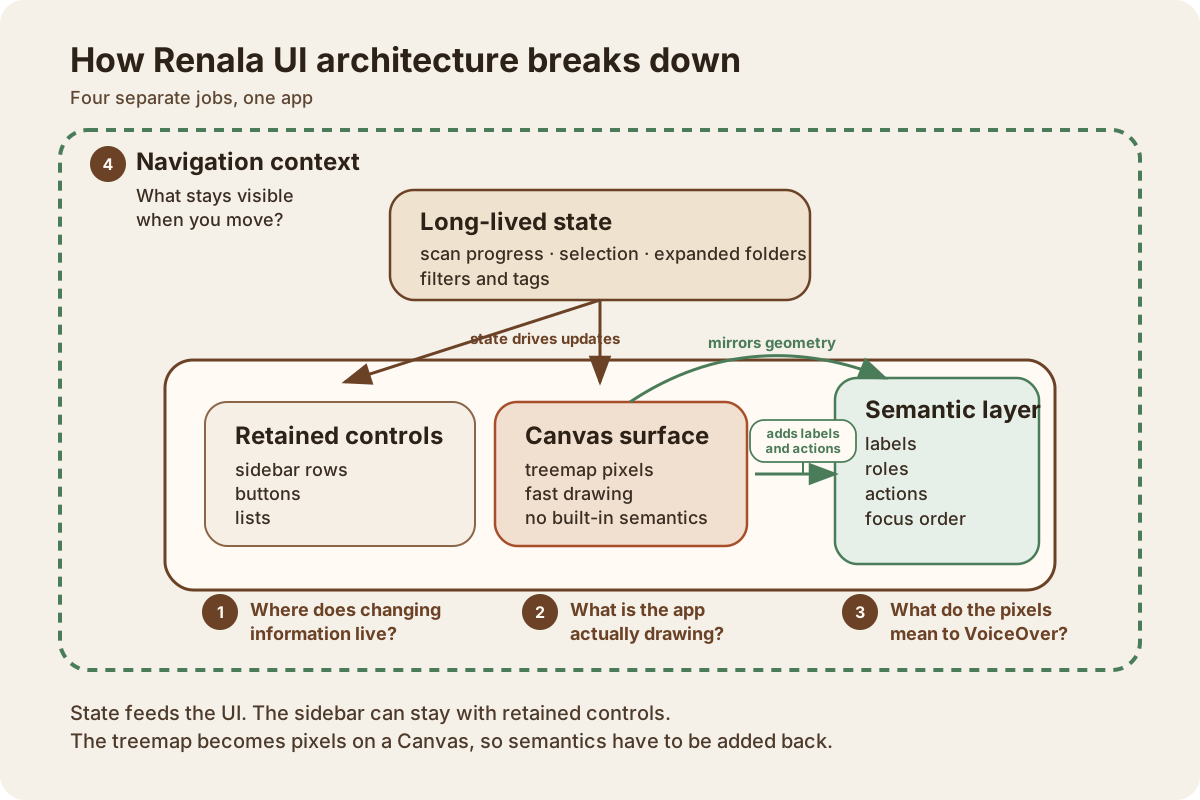
The rest of the article is just Renala’s answer to those four questions.
Layer ①: Where the changing information lives
State is just information the UI can change and must remember: scan progress, the current root, the selected node, expanded folders, filters, and tags. Put that memory in the wrong place and updates become fragile.
The modern answer is @Observable. While SwiftUI evaluates a view’s body, it records which observable properties that view reads. Later, mutations can invalidate the views that depended on those properties instead of treating every mutation as equally relevant.
No subscription calls. No dependency arrays. No cleanup. You mark a class, SwiftUI tracks the reads. The WWDC 2023 session Discover Observation in SwiftUI covers the mechanism in depth.
// Simplified for illustration
@Observable @MainActor
final class ScanViewModel {
    var scanState: ScanState = .idle
    var currentRoot: FileNode? = nil
}
A View that reads scanViewModel.scanState becomes dependent on scanState. A View that reads only currentRoot becomes dependent on currentRoot. That gives SwiftUI much finer invalidation than “something in the object changed.” (The older ObservableObject protocol works at object granularity, invalidating all views when any @Published property changes. @Observable tracks at the property level.)
This is cleaner than useSelector in Redux or React.memo with a custom comparator. The framework does the bookkeeping.
Renala’s answer: MVVM for the state-owning objects
In Renala, MVVM is simply the state-owning layer. If you have used Redux or MobX, the shape is familiar:
- The Model is
FileNode,ScanResult,VolumeInfo. Pure data. No UI dependencies. - The ViewModel is
ScanViewModelandTreemapViewModel:@Observable,@MainActor. They hold application state and expose it to views. They run scans, compute layouts, handle user actions. - The View reads from the ViewModel and sends actions back.
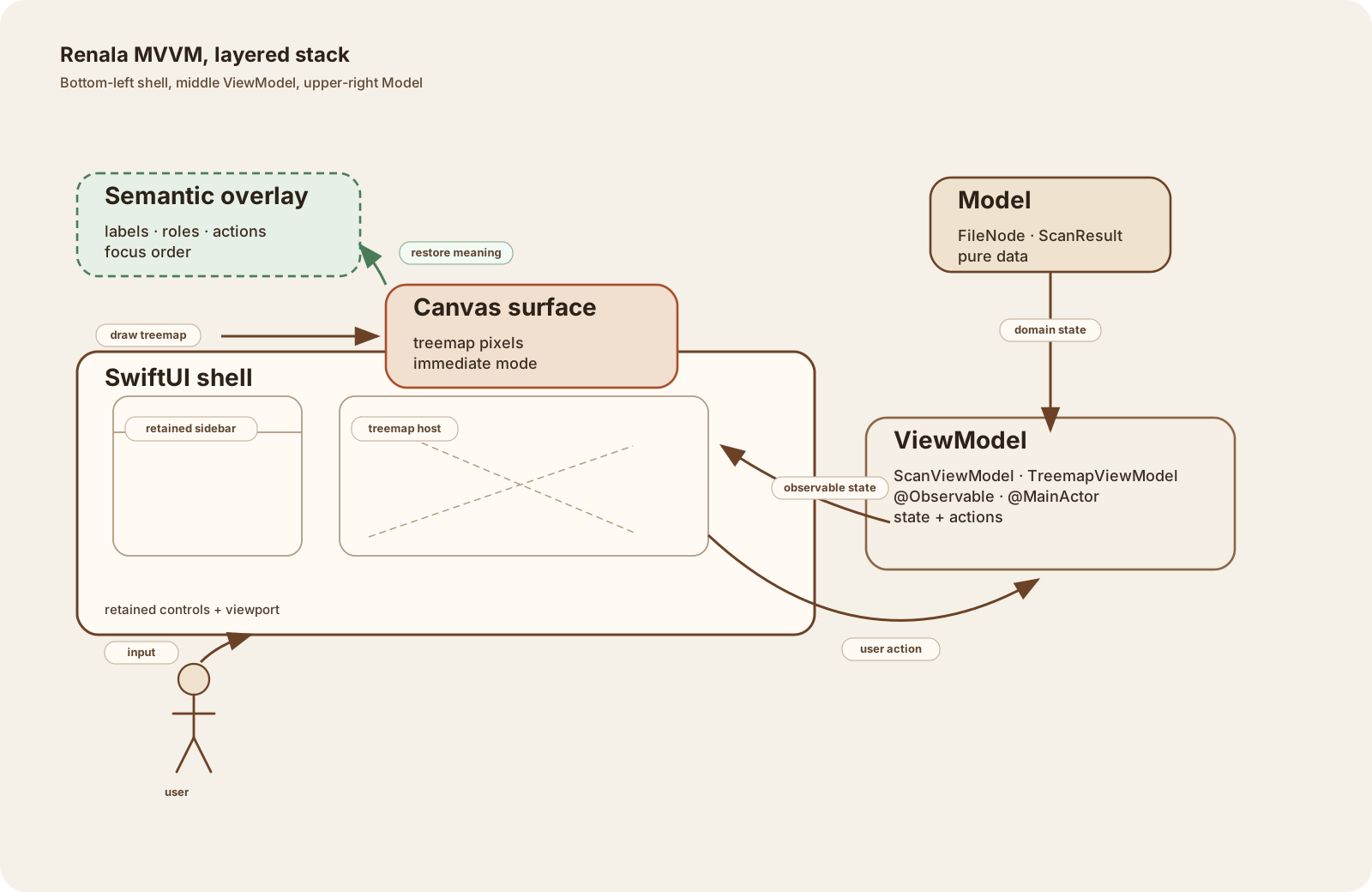
The view reads ViewModel properties in body, SwiftUI records those dependencies, and later updates can be scoped around them. No wiring. Far fewer chances to create stale closure bugs by hand.
@MainActor marks this state as belonging to the main thread, the one SwiftUI renders on. That puts UI mutations in a known, safe place. The compiler checks boundary crossings at build time (the previous article covers the full concurrency model); background work still has to hand results back explicitly, but the isolation story is much clearer.
That explains where long-lived state lives. The next question is simpler and more concrete: what exactly is this app drawing, and how much work can each update afford before the UI starts to lag?
Layer ②: What the app is actually drawing
Rendering means turning state into something visible, and every UI has a budget. Renala had two different rendering problems inside one app: the sidebar had to represent a huge tree without a huge view hierarchy, and the treemap had to draw tens of thousands of rectangles without retaining tens of thousands of child views.
Unlike React, SwiftUI can often skip a child’s body evaluation when the child’s stored properties have not changed. It tracks which observable properties each view reads and uses that to narrow invalidation further. That model has edge cases, especially around closures and identity. Appendix B covers the update mechanics in depth; the short version is that passing stable ViewModel references instead of freshly created closures gave SwiftUI more chances to skip unnecessary work in Renala.
First pressure point: the sidebar tree
The obvious sidebar implementation is a recursive DisclosureGroup. It is also the wrong one. On a tree with 5.2 million nodes, recursive nesting creates the wrong virtualization boundary. Open a directory with thousands of descendants and the app stops being an app.
The fix is a flat List over a precomputed visible-node array. Expanding inserts children at the right index. Collapsing removes them. SwiftUI only creates rows for the visible viewport.
This is projection architecture. The filesystem stays recursive. The UI becomes a flat projection of the visible slice because that is the shape SwiftUI can virtualize cheaply. The trade-off is bookkeeping: the ViewModel now owns both the recursive tree and the flattened visibility projection, and mutations have to keep them aligned.

List, not a recursive tree. During search, the visible array is filtered to matching nodes and all their ancestors. Clearing the search restores the previous expansion state.Second pressure point: the treemap surface
The treemap presented a different problem entirely.
A full disk scan produces tens of thousands of visible rectangles. Individual SwiftUI Rectangle views froze the app. Metal might still outperform everything, but it would also have forced a much larger jump in scope. Canvas was the practical middle path: immediate-mode drawing inside SwiftUI.
That is the architectural hinge of the article. Canvas is not a faster rectangle. It is a different bargain. Standard SwiftUI controls keep structure and semantics around for you. Immediate mode gives you lower overhead and more control, then sends you the bill elsewhere.
Canvas { context, size in
    // One pre-rendered image covers the entire canvas: cushion shading for all cells
    context.draw(cushionImage, in: CGRect(origin: .zero, size: size))
    // Then per-rect overlays: directory headers, labels, badges
    for rect in treemapViewModel.rects {
        drawOverlays(context: context, rect: rect)
    }
}
The actual implementation composites four layers:
One Canvas node in the hierarchy. The hover and selection highlight lives in a separate lightweight overlay to avoid re-rendering the full Canvas on every mouse event.

There is an accessibility cost. Standard SwiftUI views participate in the accessibility tree automatically: a Button gets a VoiceOver label (VoiceOver is macOS’s built-in screen reader), a List row can be navigated with keyboard focus. A Canvas does not automatically expose its drawn elements as individual accessibility elements. Screen readers do not inspect pixels. They inspect semantics. Once you leave retained controls and start drawing pixels directly, those semantics are gone unless you rebuild them yourself.
Layer ③: What the pixels cannot say
Pixels can show shape, color, depth, and position. They cannot tell a screen reader what something is, what it is called, what action it supports, or where it belongs in focus order. That missing meaning is what I mean by semantics.
The solution is a parallel invisible overlay. The Canvas draws the visual treemap. On top of it, a transparent ZStack contains one Color.clear rectangle for each visible treemap cell, positioned and sized to match the Canvas layout exactly. The Canvas is marked .accessibilityHidden(true), so VoiceOver ignores it entirely.
This is not accessibility cleanup. It is a second UI architecture running in parallel with the first. Keep both layers aligned or the app becomes visually coherent and semantically broken.
Each overlay element carries four pieces of semantic information:
accessibilityLabel: the file or directory name, its type, and for directories, the child count. A file reads as “photo.jpg, JPG”; a directory as “Library, folder, 342 items.”accessibilityValue: the formatted size, percentage of parent, and any cleanup badges. “1.2 GB, 8%, tagged as Large.”accessibilityHint: what will happen on activation. “Selects this file” for files, “Opens this directory” for directories.3accessibilitySortPriority: set proportional to the file’s size on disk, so VoiceOver traverses the largest items first, the same visual priority the sighted user gets from the treemap’s area encoding.
Custom accessibility actions go beyond navigation. Each element exposes actions for selecting, drilling down into a directory, tagging a file (Old, Temporary, Large), and adding to the cleanup batch. These map to the same operations available via mouse and keyboard.
// Simplified from TreemapAccessibilityOverlay.swift
ZStack {
    ForEach(visibleRects, id: \.nodeID) { rect in
        Color.clear
            .frame(width: rect.frame.width, height: rect.frame.height)
            .position(x: rect.frame.midX, y: rect.frame.midY)
            .accessibilityLabel(label(for: rect))
            .accessibilityValue(value(for: rect))
            .accessibilityHint(hint(for: rect))
            .accessibilitySortPriority(sortPriority(for: rect))
            .accessibilityAction(named: String(localized: "Select")) { select(rect) }
            .accessibilityAction(named: String(localized: "Tag as Large")) { tag(rect, .large) }
    }
}
.accessibilityElement(children: .contain) // Without this, SwiftUI combines overlapping children into one element
A separate announcer posts accessibility notifications for state changes with no visual focus shift (scan completion, filter changes, batch operations), so VoiceOver users stay informed without navigating back.
The pattern (visual Canvas hidden from the accessibility tree, parallel semantic overlay on top) is reusable anywhere you use immediate-mode drawing in SwiftUI. The implementation cost is real (a second layout pass, plus maintaining parity between Canvas draw order and overlay positions). Budget for it from the start, including verification. If you adopt this pattern, you need tests or inspection tooling that catch parity failures when the Canvas evolves. “We’ll add accessibility later” is the “we’ll write tests later” of UI development.
Layer ④: What navigation must preserve
The first three layers are framework problems with framework answers. This one is a design problem. There is no Canvas equivalent, no property wrapper, no interactive to toggle. The question is simpler and harder: what should the user still see after they move?
Navigation is not only about moving somewhere. It is about deciding what context survives that move. If too much disappears, the user loses their bearings and has to reconstruct where they are.
Towards the end of the project, a friend tested the app and found two navigation failures immediately: selecting a file made the tree collapse in a disorienting way, and the breadcrumb used an arrow that looked clickable but was not.
Both were design problems, not framework problems. The fixes were equally concrete: revise zoom navigation so context survives when you move into a file, and remove the misleading breadcrumb arrow. The keyboard model followed the same logic: arrow keys through the tree, Backspace to go up, Spacebar for Quick Look.
This is architectural, not decorative. Selection, drill-down, breadcrumbs, sidebar focus, keyboard movement: those are all state transitions with platform promises attached. On macOS, navigation is not garnish. It strongly shapes how much context the UI should preserve.
Paraphrasing Steve Krug in Don’t Make Me Think: every extra question in the user’s head adds friction. A breadcrumb arrow that does not respond to a click is a question mark. A tree that vanishes when you select a file is a question mark. The fix in both cases was not to answer the question but to remove it.
// Simplified: drill-down preserves sidebar state
struct ContentView: View {
    @State private var selectedNode: FileNode?
    @Bindable var viewModel: ScanViewModel

    var body: some View {
        NavigationSplitView {
            SidebarView(viewModel: viewModel, selection: $selectedNode)
        } detail: {
            if let node = selectedNode {
                TreemapView(root: node, viewModel: viewModel)
            }
        }
    }
}
Selection state (selectedNode) lives in the View while the tree state lives in the ViewModel, so drilling into a node changes the detail pane without collapsing the sidebar. That is the fix for the friend’s bug report: keep the two kinds of state in different owners so one navigation action does not wipe the other.
SwiftUI on macOS is not SwiftUI on iOS. The framework is the same; the platform expectations are different.
What MVVM explains, and what it hides
MVVM still explains something real here. It tells you where Renala’s long-lived shared state lives, and why this app puts disposable View structs beside state-owning reference types for that job.
But MVVM is too coarse to explain the whole UI. It says almost nothing about the flat sidebar projection, the shift to immediate-mode drawing, the semantic overlay, or the navigation rules forced by macOS expectations.
That is the deeper lesson. In Renala, the architecture was never one thing. It was state ownership plus a rendering regime plus a semantic layer plus a navigation model. MVVM was one useful label inside that stack, not the stack itself.
Going further
WWDC sessions (free, official):
- Discover Observation in SwiftUI:
@Observableand the new observation model. - Demystify SwiftUI: what SwiftUI re-renders, and why.
- Add rich graphics to your SwiftUI app: the
CanvasAPI in practice. - SwiftUI on iPad: Organize your interface: navigation patterns that also matter on macOS.
Written reference:
The treemap rendering pipeline, including the Lambert shading that makes the rectangles look three-dimensional, is covered in the next post.
Footnotes
-
This is one of the most common React misconceptions. Without
React.memo, a component re-renders every time its parent re-renders, even if every prop is identical. Prop changes are irrelevant to the default behavior.React.memois the opt-in that makes prop comparison the gating condition. ↩ -
React.memoanduseMemoserve different purposes.React.memowraps a component and skips rendering when props are shallowly equal.useMemomemoizes a computed value inside a render; it does not prevent the component itself from re-rendering. You can useuseMemoto keep a referentially stable value that helpsReact.memodownstream, butuseMemoalone is not a re-render prevention mechanism. ↩ -
Apple’s accessibility guidelines warn against including gesture names in hints because gestures differ across platforms and input methods. On macOS, VoiceOver activation is VO+Space, not “double-tap” (an iOS gesture). Hints should describe outcomes, not gestures. ↩